Viewing Audit History
FMS Explorer provides a detailed audit history trail for several externally audited FMS records, providing insight into the user workflow process for the selected record.
The Audit History dialog box can be accessed via the Audit History button found in the following locations.
| Audited Record Type | Where Found in FMS Explorer |
|---|---|
|
Admin: Estimation Engines |
|
|
Admin: Purged Data |
|
|
Admin: Thinned Data |
|
|
Admin: Validation Engines |
|
|
Admin Options: Audit Categories |
|
|
Admin Options: Composition Splits |
|
|
Admin Options: Custom Dashboard Columns |
|
|
Admin Options: Custom Device Data |
|
|
Admin Options: Data Quality Settings and System Data Quality Settings |
|
|
Admin Options: Email Options |
|
|
Admin Options: Normalization Views |
|
|
Admin Options: System Settings |
|
|
Admin Options: Unit Set Definitions |
|
|
Device Node Properties |
View Node properties - Gas Meter Properties View Node properties - Chromatograph Properties View Node properties - Liquid Device Properties |
|
Group Categories |
|
|
Group Node Entries |
View Node properties - General Group Entries View Node properties - Station Group Entries |
|
Group Node Properties |
View Node properties - General Group Properties View Node properties - Station Group Properties |
Click the Audit History button to access the Audit History dialog box for the item selected.
|
Audit History |
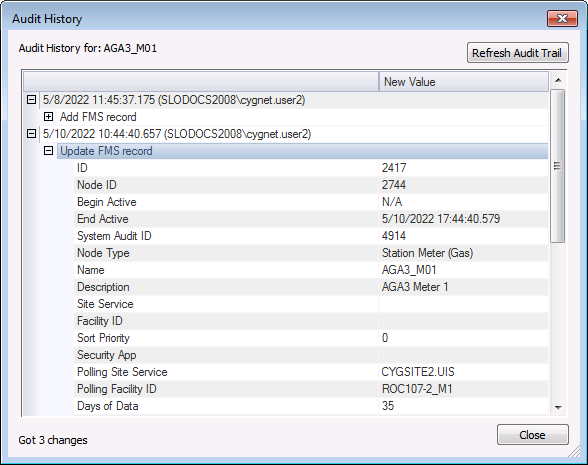
The following fields appear in the Audit History dialog box. In addition, the bottom left portion of the dialog box status bar displays the audit history results (e.g. "Got 3 changes" in the example above).
| Field | Description |
|---|---|
|
Refresh Audit Trail |
Click to refresh the audit trail for the selected FMS record. |
|
[Audit History] |
Expand/contract the record entries to view/hide audit trail details for the FMS Node and time window selected. Each entry will display the following information on the first line.
Each entry will display the following information on additional lines
|
|
New Value |
Displays the new value for the record that has changed. |
|
Close |
Click to close the dialog box. |


